Test version: payments are in Stripe test mode. No real money is taken.

How it works

From your bank CSV to totals for your MTD software and an audit workbook to keep — month by month.

  1. Month 1: upload your bank CSV

    • Export a CSV from your bank’s app or website — current account, credit card, or both (up to three files).
    • Clearkept reads Monzo, Starling, Barclays, HSBC, Lloyds, NatWest, Santander, Nationwide and American Express directly; for any other bank you choose which column is which.
    • The file is read in your browser. Lines outside the tax year you chose are left out and counted.
  2. Confirm each category

    • Each line shows a suggested HMRC category, how sure the suggestion is, and a short reason.
    • Lines that may be personal, need a receipt or are unclear are flagged: you tick each one, and unclear lines wait for your decision.
    • If you change a category or decide an unclear line, you add a short note saying why. You can split a shared cost across your businesses and personal use, and note the basis of the split.
  3. Download your totals CSV and workbook

    • First you check the totals per business and your notes, and sign a short declaration with your name. It goes into your workbook only.
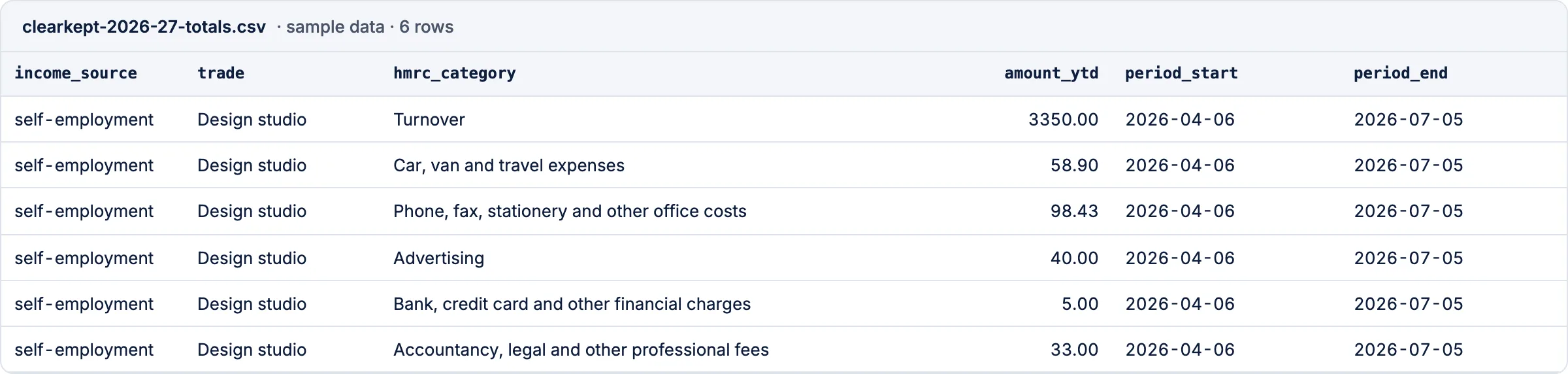
    • The totals CSV gives year-to-date totals per business and HMRC category, to import into your bridging or MTD software.
    • The workbook is built in your browser: every line, your choices and notes, the totals per business and a Self Assessment box guide. Keep it with your records.
    • Then the page clears everything.
  4. Month 2 onwards: upload last month’s workbook + the new month’s CSV

    • Upload the workbook you kept last month together with the new month’s bank CSV.
    • Choices you’ve already made carry over, so known payees are sorted for you and only new lines need a look.

    Coming with the 2027/28 year pass

What you get

A Clearkept totals CSV made from sample data: six rows, one per HMRC category, with income source, trade, HMRC category, year-to-date amount, period start and period end.

Totals CSV

Import this into your MTD software.

Year-to-date totals by HMRC category, one file per quarter, ready to import into your bridging or MTD software. You then check and submit there.
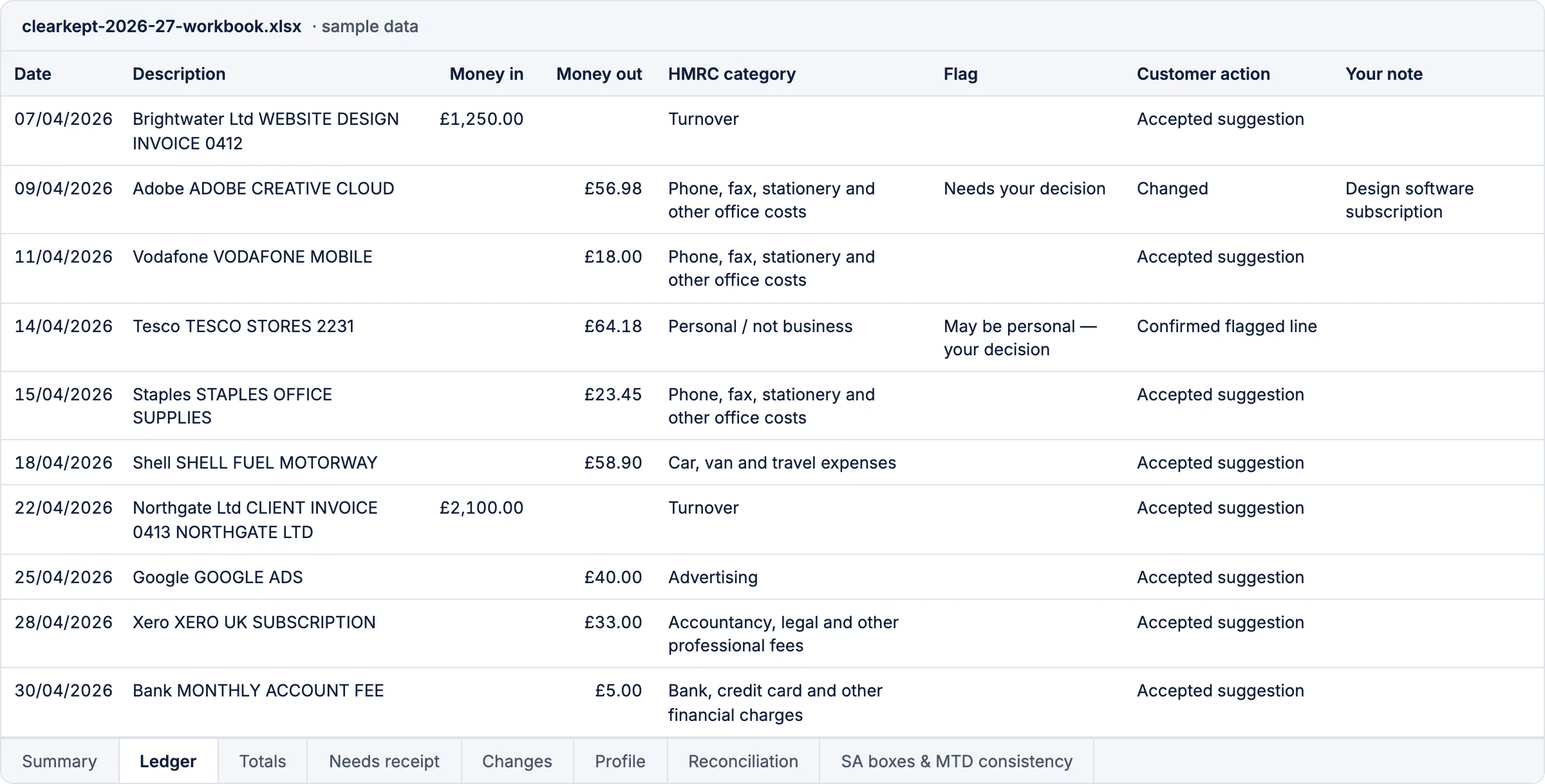
The Ledger tab of a Clearkept workbook made from sample data: ten bank lines with date, description, money in, money out, HMRC category, flag, the customer’s action and their note. One line was changed, with a note saying why; one is flagged “May be personal”.

Excel workbook

Keep this: your audit trail.

Every line, its category, your choice and your note. Keep it for at least 5 years after the 31 January filing deadline, in case HMRC asks.

Clearkept doesn’t file anything. Your MTD software sends your update to HMRC.

The Excel workbook has eight tabs:

Summary
tax year, period, quarterly totals per business, your file references and a keep-until date
Ledger
every bank line with its HMRC category, any flag, the reason, and what you did with it, with the time
Totals
year-to-date totals per HMRC category, each trade and your property business separately
Needs receipt
the lines HMRC would expect you to have proof for
Changes
every line where you changed the suggested category: before, after and when
Profile
your answers about your business, as you gave them
Reconciliation
bank total = business + personal + transfers, so nothing is missed or counted twice
SA boxes & MTD consistency
each total next to its Self Assessment box, with space for your year-end adjustments and your reason for any difference

And a totals CSV: year-to-date totals per business and HMRC category, to import into your MTD software. If a business’s turnover is under £90,000, there is also a version with expenses as one total.

The Self Assessment box guide shows which box each total belongs in (SA103S, SA103F, SA105) — figures before your year-end adjustments.

Your bank file

Your bank file stays in your browser; we don’t keep your data.

  • Your file is read on your own computer. Balances, account numbers and sort codes never leave it.
  • To suggest categories, each line’s date, description (with long numbers and card numbers removed), amount and in/out are sent to our server and our AI provider, Anthropic. We don’t store them or log them.
  • Your workbook is built in your browser. When you finish, the page clears everything.
  • No account, no cookies, no tracking.

More questions

Who is it for?

Sole traders (one trade or several, each kept separate) and landlords with UK property — residential, commercial or both — including people with both, or one bank account for business and personal spending. Not for limited companies, partnerships or VAT returns.

Which tax years?

2025/26 (Self Assessment only, due 31 January 2027) and 2026/27 (MTD quarterly updates and Self Assessment).

I have several trades, or I use one account for everything.

That is fine. Each trade is kept separate, with its own totals. Personal spending is marked as personal and left out of the totals — you confirm each one.

What if a line is unclear?

It goes to “Needs your decision”. Nothing unclear is decided for you: you pick the category and tick each flagged line before you can download.

Do you keep my bank data?

No. There is no account to create and nothing to log in to; the page clears when you finish.